How to Use the Hard Disk 20 with Mac 128K
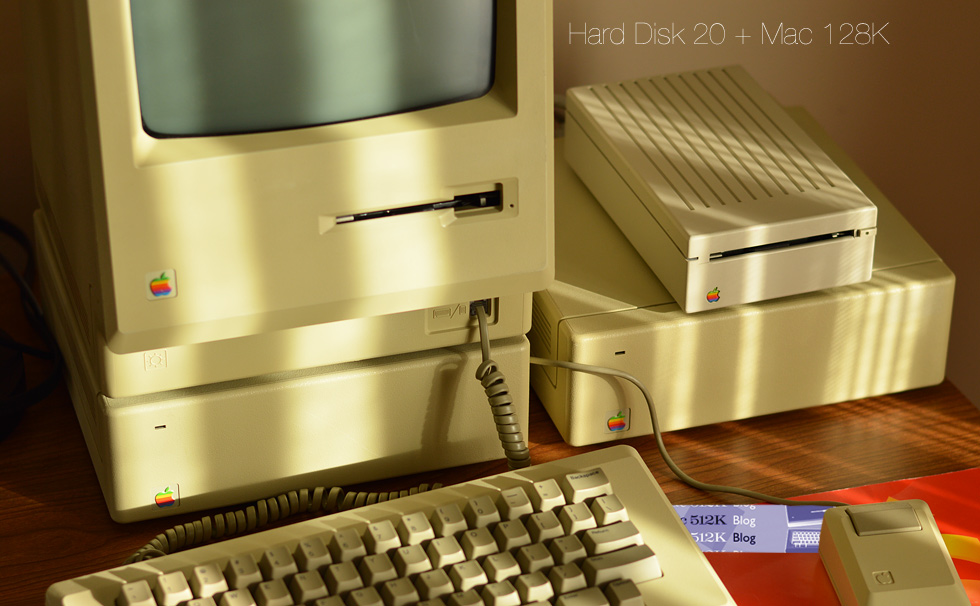
The Hard Disk 20 seems to be a popular subject around here. How many articles have I written so far on this thing? Well here's another one to satisfy the Mac 512K Blog's mission of taking the 512K Macintosh to its limits. But in this case, the Mac 128K is in the spotlight.
Probably every regular reader of the Mac 512K Blog knows that the Hard Disk 20 is not supported on the original Macintosh 128K, just like everyone knows that the Mac 512K can't run System 6. Apple told us that we can't use the Hard Disk 20 on the Mac 128K, but we are going to ignore what Apple said 35 years ago and do it anyway. 
Let's take stock of what we know so far.
Hard Disk 20 + Mac 128K, the Story Thus Far
I have never owned an original 128K Macintosh, but I had custody of one for a few weeks in fall 2017. In my very first Macintosh Hard Disk 20 article, way down near the end, I recorded some of my observations of using an HD20 and a Mac 128K. I will summarize what I discovered:
- When booting the HD20 Startup disk, the phrase "Hard Disk 20 Startup" does not appear in the Welcome to Macintosh dialog box, and the Hard Disk 20 icon does not show on the Finder desktop.
- Both HD Diag and HD20 Test, the utilities for the HD20, work on the Mac 128K and can access data stored on the Hard Disk 20.
- If you replace the original 64K ROMs in the Mac 128K with the new Mac Plus 128K ROMs, you get a Mac 128Ke, and this configuration supports the Hard Disk 20 and 800K double-sided drive just like a Mac 512Ke.
Now from these three bullet points, the solution is obvious: simply put the new 128K ROMs in the Mac 128K, and now it will support the Hard Disk 20! Easy!

Not so fast. That was too easy. Our goal is to use an HD20 with the original 64K ROM in the Mac 128K.
Loading the Hard Disk 20 File
In the recent article on Macintosh Startup Revealed, I showed how the Hard Disk 20 file is loaded by code in System file versions 2.1 and later during startup. Its three PTCH resources are each loaded into the system heap.
The Hard Disk 20 file contains an improved .Sony disk driver called SonyDCD, as well as RAM-based HFS. Two checks in the System file ensure that the HD20 code is loaded on only one model of Macintosh in the entire world: the Macintosh 512K.
Here are those few lines of code:
| Code: |
| ; Load Hard Disk 20, from System file 2.1 MOVEM.L D2-D7/A2-A6,-(SP) ; save registers CMPI.W #08,MemTop ; check memory size BLT Done ; 128K is not enough TST.W ROM85 ; new ROM? BPL Done ; yes, so nothing to do |
The first CMPI.W instruction checks memory size. If the Mac has only 128K of RAM, it will fail this check. The second check is for the presence of the new 128K ROM. If the Mac does have the new ROM, this check fails. There is no need to load the Hard Disk 20 file on a Mac 512Ke, Plus, or later model because these ROMs already have the SonyDCD driver and HFS built-in.
The only model of Mac that has 512K of RAM, but not the new 128K ROM is the Mac 512K, thus the Hard Disk 20 file is only ever loaded on this model.
But it wasn't always going to be that way, as a comment in the HFS source code suggests. This comment, dated May 1985, refers to a change made "to allow use on 128K machines." Furthermore, InitFS, the entry point to initialize HFS, includes multiple checks for a 128K Mac, and allocates fewer file control blocks and smaller caches if so. Thus it seems fairly certain that compatibility with the Mac 128K was originally a goal for HFS.
And it looks like the solution to allow the Hard Disk 20 to load on a Mac 128K is to merely replace the memory size check with some NOP instructions.
Defeat the Memory Check
With a hex editor, it's simple to defeat the memory check by overwriting the instruction with a NOP. I always use FEdit by John Mitchell. In FEdit, choose Open File... from the File menu. Open the System file.
Now if you are editing the System file version 2.1, the code you are looking for is in the Data fork, so you need to choose Data Fork from the Options menu. System file versions 3.0 and later have the target code in the Resource Fork, so you don't need to switch forks.
Press Command-F to perform a Hex search. Enter the following:
| Code: |
| 0C 78 00 08 01 08 6D 00 01 BA |
The screenshot below shows this sequence of code in the System 2.1 data fork. This identical sequence is found in the resource fork of System file versions 3.0, 3.1, 3.2, and 3.3. Later System file versions have slightly different branch offsets, so just search for the first 4 hex bytes, 0C 78 00 08, if you want to patch System versions 4.0 or later. Though it's probably a pointless waste of time to patch anything newer than 3.0 or 3.1, as you'll have even more work to do massaging the System file to work in only 128K of RAM.
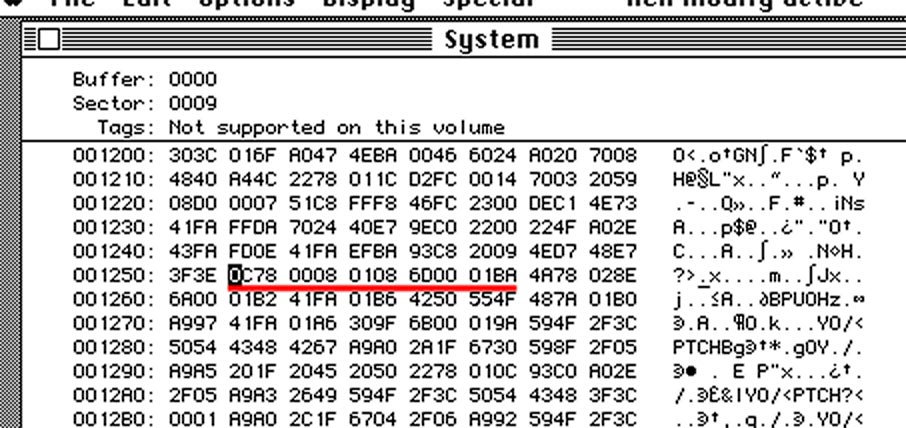
Locating the machine language code for memory check
Now here is the patch. There are 10 bytes total. You need to replace them with the machine language instruction for NOP which is 4E71. This NOP will be repeated five times.
The screenshot below shows the result, again in System version 2.1. Press Command-W to write this modified sector back to disk. Click OK when asked if you are sure.
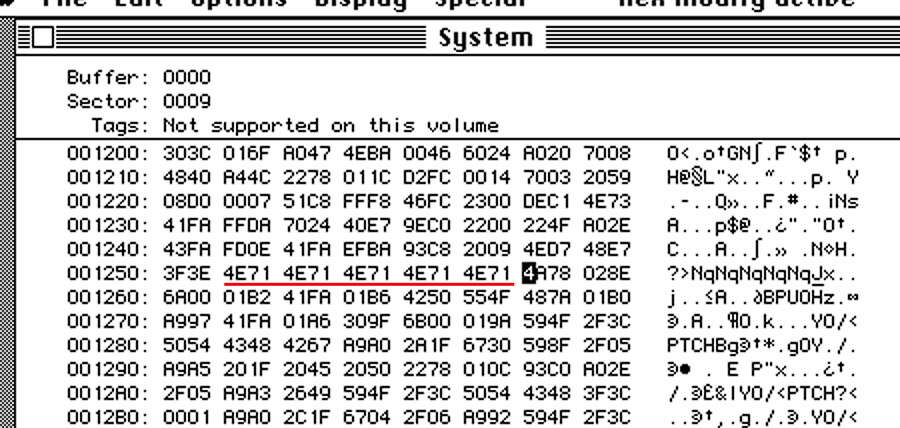 Memory check in the System file patched out with NOP instructions
And now for the moment of truth! Use this patched HD20 startup disk to boot your Mac 128K. If everything went according to plan, the Hard Disk 20 message should appear in the Welcome to Macintosh dialog box.
What? No message?
 It's true; this patch isn't enough. There is some other factor that we've overlooked.
Expanding the System Heap
Here's what we didn't account for: the system heap. This is where ROM patches, operating system data structures, and common resources that are used by every application are stored. The application heap is cleared and initialized every time you start a new application, but the system heap sticks around. In older System versions its size is static, fixed at boot time. By the late 1980s, with System 4.2, the system heap could grow as needed.
Parameters in the boot blocks set the system heap size based on the total memory of the Mac. There are entries for a 128K, 256K (!), and 512K Mac. The entry for a Mac 128K is 17,152 bytes, or 16 and three-quarters kilobytes.
The Hard Disk 20 file is a big one! It's exactly 32,768 bytes. That's twice the size of the Mac 128K's system heap. No wonder the Hard Disk 20 file won't load! The operating system is silently refusing to load the oversized PTCH patch resources it contains into the system heap. To be exact, it's PTCH ID 0 for RAM-based HFS, which is over 24K, that is too big to load into the system heap.
We need to expand the system heap! Back to FEdit.
This time, we need to modify the boot blocks of the Hard Disk 20 Startup disk. FEdit has an editor built-in. In FEdit, choose Open Volume... from the File menu. Select your startup disk and click the Open button.
From the File menu, choose Edit Boot Blocks. At the bottom of the dialog that appears are two fields for System Heap Size. The values are in hexadecimal. The first one marked (128K) is the one to change. Its value should currently read 4300.
Enter C000, the same heap size as for a Mac 512K. This will yield a 48K system heap. Click Update to write this modified boot block.
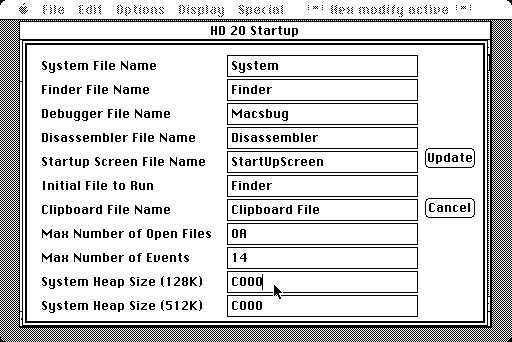
Using FEdit's boot blocks editor to enlarge the System heap size for a Mac 128K
Let's reflect on what we've done. At 48K, the system heap is now 37.5% of the total RAM in a Mac 128K. How much free memory will be left for the application heap? The screen buffer is 22K. About 2K are used for low memory globals, including the trap dispatch table and 68000 vectors.
128K - 48K - 22K - 2K = 56K free for applications
Ouch, that's a crunch. Now you can understand why Apple decided to exclude the Mac 128K from loading the Hard Disk 20 file.
Did It Work?
Restart your Mac 128K with this patched HD20 Startup disk. Make sure you hold down the mouse button at the Welcome to Macintosh dialog to prevent the Hard Disk 20 from taking over startup. This time, you will see the "Hard Disk 20 Startup" message in the Welcome to Macintosh dialog box, signifying that both HFS and the new Sony disk driver are loaded into memory.
But then you will get a System Bomb with ID = 15. That's a Segment Loader error, and it means there's not enough free memory to load the Finder. Here's another reason why the Mac 128K was cut off from the Hard Disk 20!
However, the Finder isn't necessary. We can specify another application to run at startup, again by editing the boot blocks using FEdit. This application should be small enough to fit into the squeezed application heap, yet have commands for opening and/or saving files so we can see if HFS is truly loaded, and access the HD20.
Two applications I tried were BinHex and TeachText 1.1. You will need to experiment with different applications and different system heap sizes. If you are still getting bombs, try using FEdit again to reduce the system heap to $A300, which is 40K.
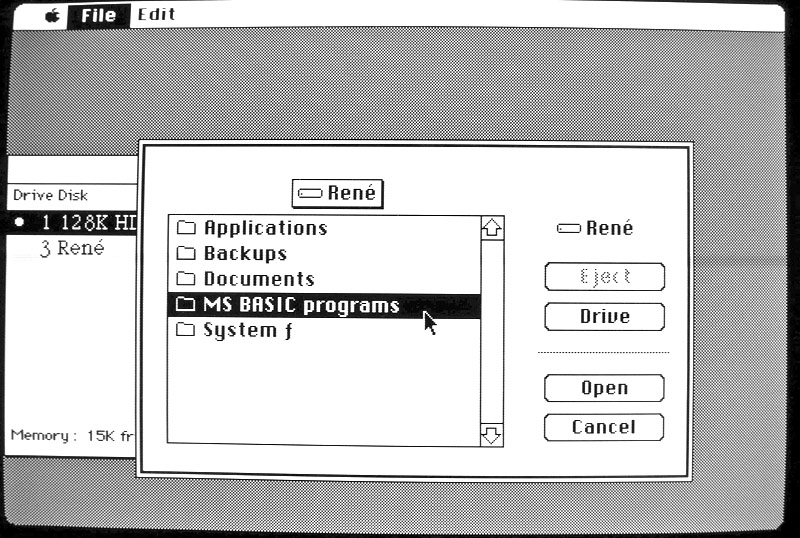
Opening a file on a Hard Disk 20 in TeachText with a Mac 128K
I would like to hear from someone who has a Mac 128K and is willing to experiment with this procedure. To summarize, it is:
- Copy the Hard Disk 20 Startup disk to a new disk
- Patch the System file to ignore the 128K memory size check
- Edit the boot blocks to increase the 128K system heap size
- Change the startup application to something smaller
When starting up from your modified HD20 Startup disk, be sure to always hold the mouse button down to prevent the Hard Disk 20's boot blocks and System from taking over.
Pseudo 128K Boot Blocks on a Mac 512K
Because I don't have a Mac 128K, I did my experiments using pseudo 128K boot blocks. Larry Kenyon's Disk Copy/Utility application has an undocumented feature: hold Command and Option while you click the wr boot block button. This will install a custom boot block that makes your Mac 512K look like it only has 128K of RAM. It reduces the size of the application heap.
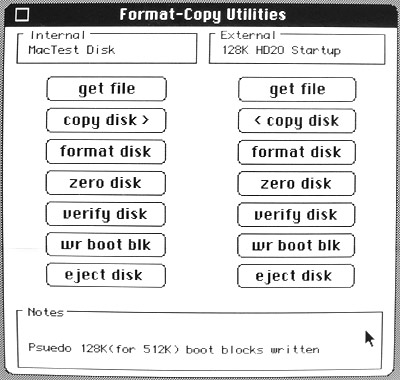
"Suedo" boot blocks written (note the typo above)
After you install the pseudo 128K boot blocks, you will need to use FEdit to modify the system heap size and set the initial application to run. If you have a real Mac 128K, you don't need pseudo boot blocks.
That's as far as I can go on this topic. I'm relying on some readers who have a Mac 128K at home to take 30 minutes or so to try this and see if it works. If you can at least see a list of files in an Open dialog box from the Hard Disk 20, I'd like to hear from you. Please post your findings below. The next Mac 512K Blog article will take a look at Microsoft Multiplan and the Apple M0120 numeric keypad attachment.
| The Mac 512K Blog wrote: |
| This blog chronicles the Macintosh 512K and my projects with it. We will test software, fix hardware, program it, hack it, and generally take the 512K Macintosh to its limits. Do leave any feedback you may have by posting a comment to this article. |